SlideSnap Studio

Simple, powerful application for converting digitized film from your SlideSnap scanner or camera scanning rig.

Features

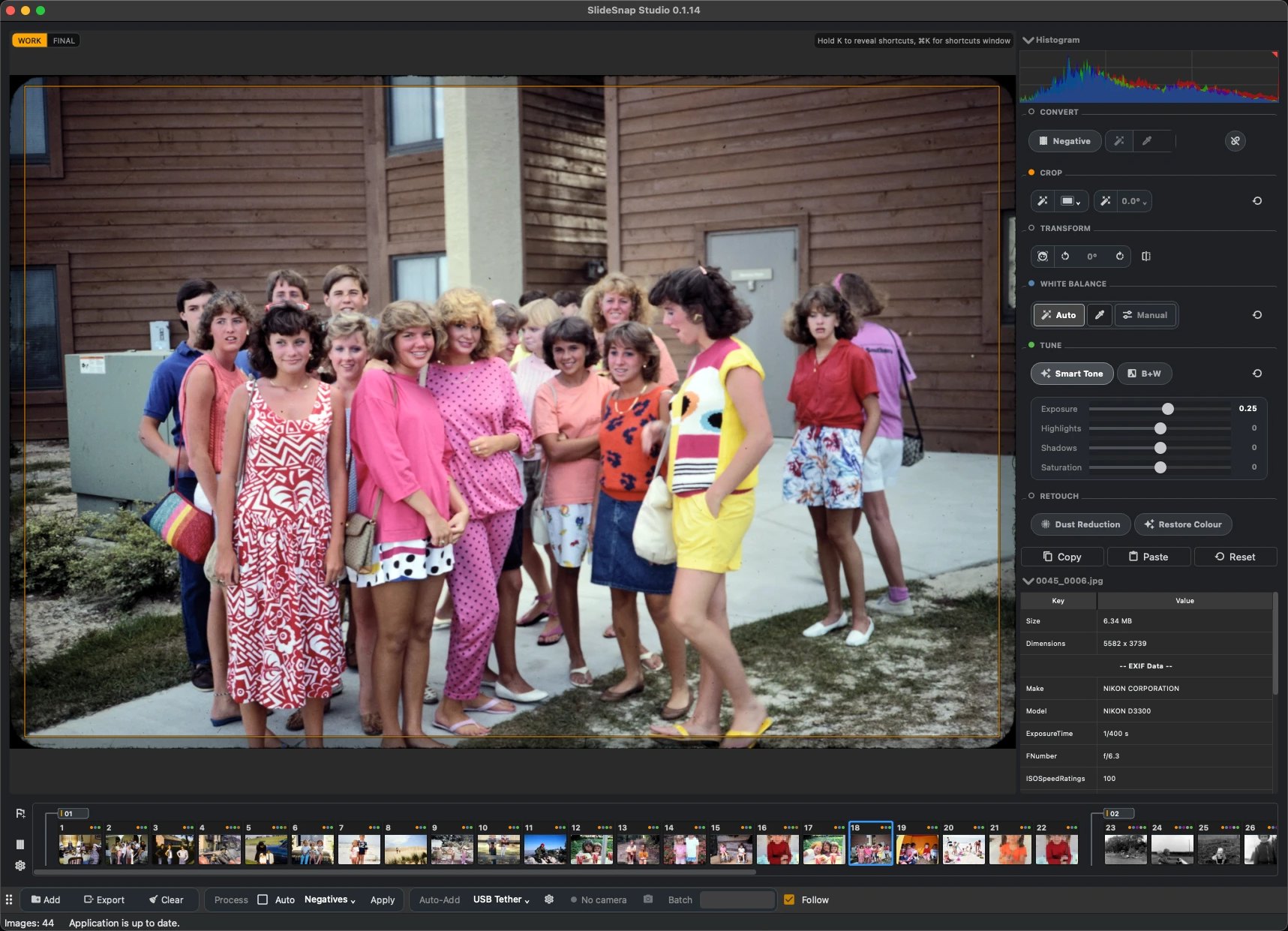
  • Negative Conversion : Instant, one click. Even without cropping.
  • Batch Processing : High volume, high speed.
  • Auto Cropping : Detects and removes overscan.
  • Auto Rotate : Detects faces, orients accordingly.
  • Intuitive Manual Cropping : Free-hand, aspect ratio snapping, memory, keyboard modifiers.
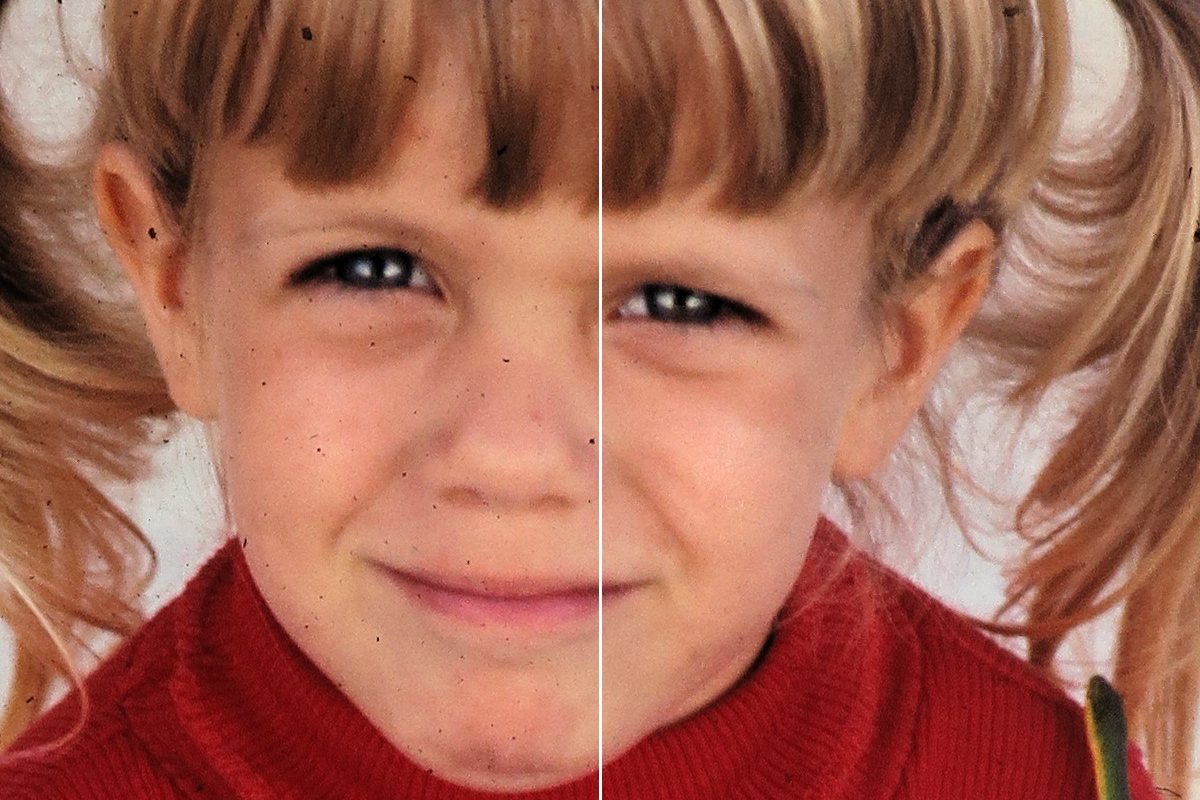
  • Dust Removal : Fast and automatic ( small defects )
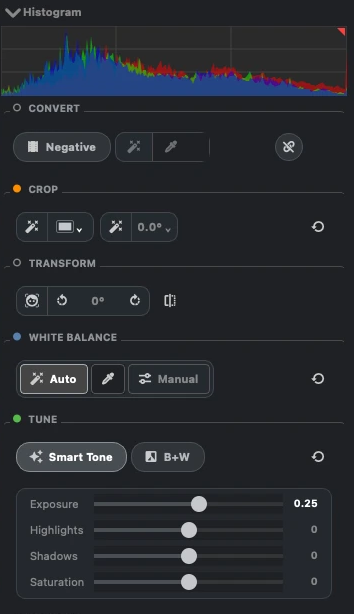
  • Smart Tone : Enhance contrast and resolve fading and color shifts.
  • Powerful White Balance : Auto or Eyedropper.
  • Intuitive HotKeys : Less mouse, more speed.
  • Transformations : Rotate, mirror and auto de-skew.
  • Nondestructive Editing: No commitments until export.
  • Hot-Folder : Instant auto-import (during USB tether for example)
  • Simple, Minimal UI: Everything you need, nothing you don’t.
  • Sessions : Pick up your work where you left off.
  • Cross-platform : Mac + Windows
  • Optimized For Speed: Comprehensive caching and multi-threading.

Demos

( Filmed Dec 2025. Does not demonstrate auto face rotate, guide crop, auto process presets )

Download

SlideSnap STUDIO is free for personal use for up to 20 images at a time, no other restrictions or watermarks.
For professional, unlimited use, purchase a license ( Good for 1 year of support / updates )

Sign Up For Updates


    Version 0.1.14

    Released: 2026-10-02

    Downloads:

    - [Added] Undo now works across your whole session, not just on the current image.
    - [Added] Linked sections: click the chain beside Negative, or right-click a section's flag, and one Negative or film base change reaches every image in that section, including new captures.
    - [Added] Sections can be named: double-click a section's flag. New buttons beside the filmstrip insert a section break and switch thumbnail views.
    - [Added] Process presets can combine a fixed rotation with face-detect Auto Rotate, so slides loaded for projection can be turned 180° and still have sideways frames straightened.
    - [Added] A new View menu. The side panel can sit left of the image or be hidden with Shift+Tab, and the toolbar can sit at the top or bottom.
    - [Added] With several images selected, Shift+Left/Right Arrow extends the selection.
    - [Added] macOS: SlideSnap Studio now downloads as a disk image (.dmg). Open it and drag the app into Applications.
    - [Changed] Faster image navigation and preview generation. Also now shows "Loading".
    - [Changed] Exports are noticeably faster, especially with dust removal ( up to 40% ).
    - [Changed] With several images selected, the side panel shows settings that differ as "mixed" instead of one image's values.
    - [Changed] UI improvements throughout.
    - [Changed] Smart Tone is gentler on shadows. It adds the same midtone contrast but no longer darkens and flattens the deepest tones, which was most noticeable on slides.
    - [Changed] Black Clip and White Clip are replaced by Shadows and Highlights in Tune. They lift or deepen dark tones and recover or brighten light ones without moving black or white, so they work the same with Smart Tone on or off. Clip settings saved in older sessions and presets are no longer applied.
    - [Changed] Tethering Diagnostics now walks you through pressing the camera's shutter and firing it from SlideSnap, and its report includes recent tethering activity, so support can see what went wrong before you ran it.
    - [Fixed] Images whose file has gone missing, for example on an unplugged drive, now stay in the filmstrip marked Missing, with their edits and sections kept, and come back when the file does. Before, they were dropped from the session and later section breaks moved.
    - [Fixed] Opening SlideSnap Studio while it is already running now switches to that window, and any images you opened go to it. Before, a second copy started, and whichever closed last overwrote the other's session.
    - [Fixed] macOS: images no longer flicker between normal and oversaturated colour when you hover over buttons shortly after launch.

    Minimum System Requirements

    macOS

    • OS Version: macOS 11 (Big Sur) or later
    • Processor: Apple M1/M2 or Intel Core i7
    • RAM: 8 GB
    • Disk Space: 500 MB + 2 GB for cache
    • Display: 1920 × 1080

    Windows

    • OS Version: Windows 10 or later (64-bit)
    • Processor: Intel Core i7 or AMD Ryzen 7
    • RAM: 8 GB
    • Disk Space: 500 MB + 2 GB for cache
    • Display: 1920 × 1080

    FAQ

    (Mac users) Should I download Mac Intel or Mac Arm? :To check which version you need, click the Apple menu → About This Mac. If you see “Chip” followed by M1, M2, M3, etc., download the Arm version. If you see “Processor” followed by Intel, download the Intel version.
    If your Mac was purchased before 2021, it’s almost certainly Intel.
    The Intel version will run on Arm chips (with reduced performance), but not vice versa—so when in doubt, Intel is the safer choice.

    How to install : Unzip the contents of the downloaded file. Move the application to your Applications folder, double click to start. As of 1/9/25, Windows users may need to click “More info…”, then “Run Anyway” ( We should have this resolved for future releases )

    Where is my license key? : If you purchased a license, it will have been emailed to you. Your order history can be found on the orders page.

    Does SlideSnap STUDIO support RAW files? : SlideSnap Studio supports an end to end lossless 16 bit pipeline via TIFF. For RAW shooters, we recommend exporting to 16-bit TIFF from your preferred RAW processor—this preserves full quality while letting you apply your own color corrections and lens profiles.

    Dust removal removed too little / too much! : While incredibly effective and helpful for many images, even after extensive tuning, algorithmic dust and scratch removal is inherently imperfect. For white dust (negatives), it can effect specular highlights, and for black dust it can alter things like tree branches and text. This is why we recommend using it sparingly and/or enabling the option in the export panel to ALSO save a copy of the image WITHOUT dust and scratch removal.

    I bought a new computer, can I use the same license key? : Yes, but you first have to Deactivate the application on your old computer under Help->Manage License->Deactivate License. If you don’t have access to your old computer, please contact us.

    Does the application stop working after the license expires? : No! This is not a subscription. It will continue to work indefinitely, but in order to continue to receive updates / support you will need to renew your license.

    Why should I choose SlideSnap Studio over Negative Lab Pro (NLP)? : Negative Lab Pro (the popular plugin) offers a lot of image control at the cost of great complexity, lots of time and an Adobe Lightroom subscription. We’ve tuned SlideSnap Studio as a self contained application for fast, professional results in a production environment, with more automation and fewer sliders.

    Built In USB Tethering ( Mac only, Experimental )